
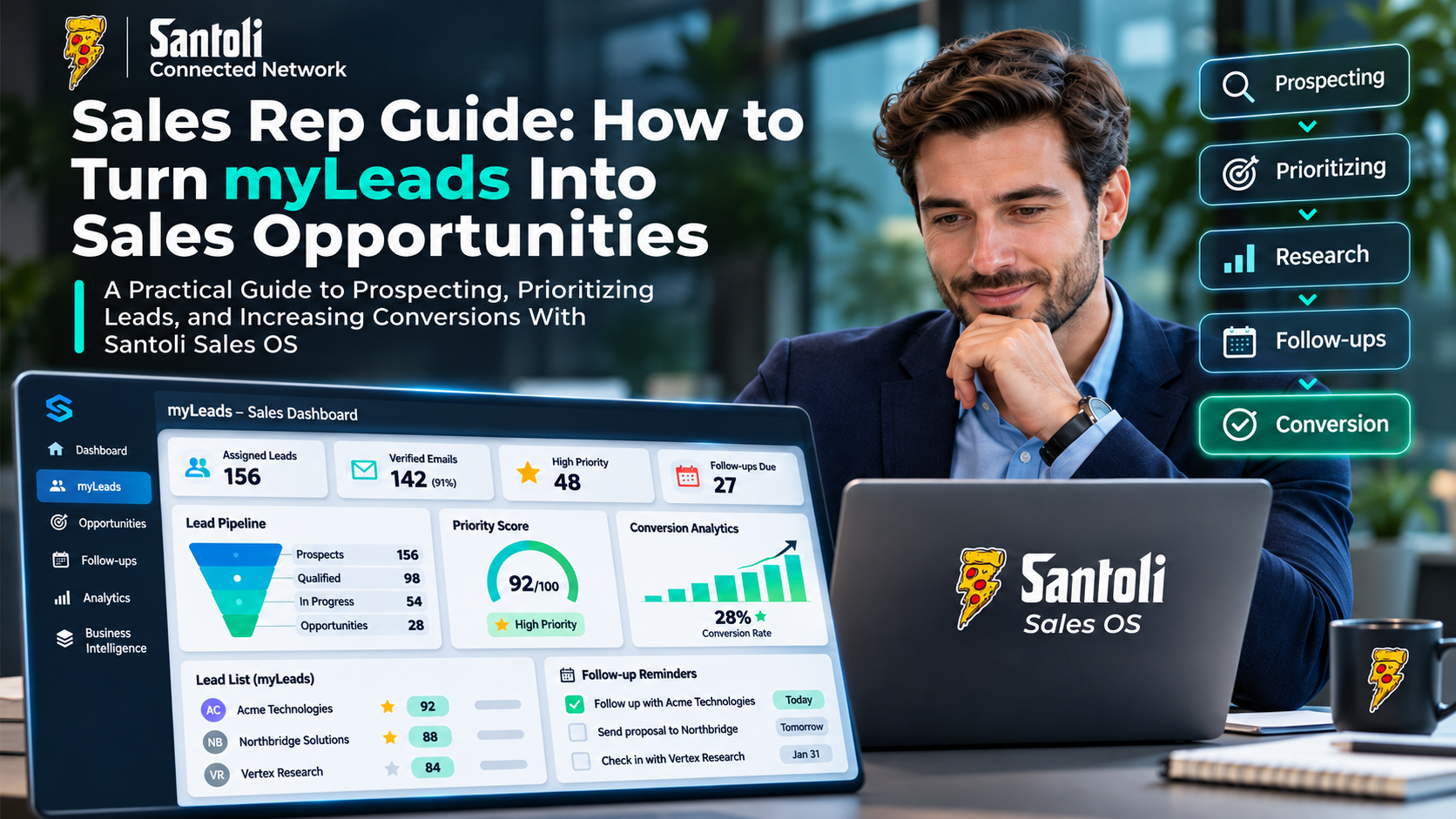
A Practical Guide to Prospecting, Prioritizing Leads, and Increasing Conversions With Santoli Sales OS
Successful business development isn’t about contacting the largest number of prospects. It’s about identifying the right businesses, understanding their challenges, recognizing opportunities, and building relationships that lead to meaningful results.
At Santoli Connected Network, we’ve developed myLeads to help sales representatives accomplish exactly that.
Integrated directly into Santoli Sales OS, myLeads combines business intelligence, lead scoring, real-time engagement tracking, email notifications, follow-up management, and conversion analytics into one prospecting platform.
With recent improvements, representatives can now identify new opportunities faster, respond to prospect engagement, search their lead database, and manage conversations without constantly switching between applications.
This guide explains how to take advantage of these tools.
Step 1: Access Your myLeads Dashboard
Log in to your Santoli Sales OS account and select the myLeads tab.
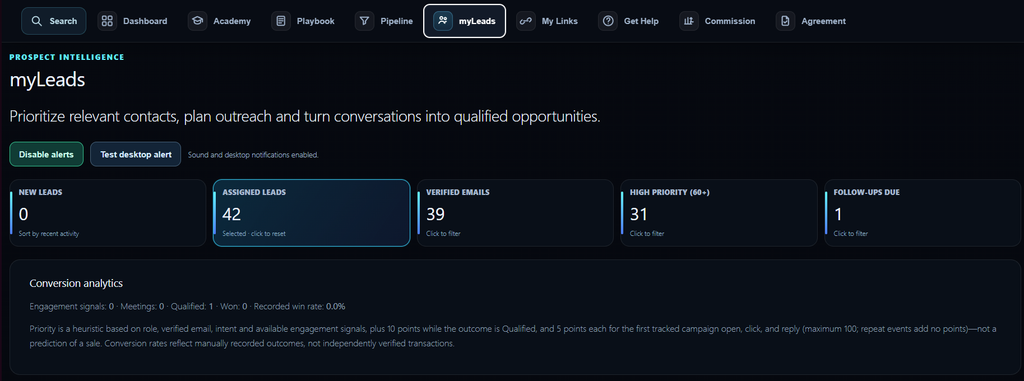
Your dashboard displays five important indicators:
- New Leads: Prospects you haven’t reviewed or leads with new activity requiring attention.
- Assigned Leads: The total number of prospects assigned to your account.
- Verified Emails: Contacts with verified email addresses.
- High Priority: Prospects with a Priority Score of 60 or higher.
- Follow-ups Due: Prospects with scheduled follow-up activities requiring attention.
Each indicator can be used to filter your leads.
The lead list also helps you distinguish between newly assigned prospects, recent engagement, and previously reviewed contacts.
Important: Opening a lead no longer removes it from your list. It remains visible while you’re reviewing its information. After you close it, previously viewed leads are moved below more urgent opportunities.
Step 2: Understand How Leads Are Prioritized
myLeads organizes your prospects so that the most actionable information receives attention first.
The system uses the following priority order:
First: New Engagement
Prospects with new email opens, link clicks, or replies appear at the top when their activity requires review.
Second: Unopened Leads
Newly assigned prospects that haven’t been reviewed appear next.
Third: Previously Viewed Leads
Prospects you’ve already reviewed remain accessible, but move below newer opportunities after their details are closed.
Within these groups, recent activity helps determine the order.
This structure reduces the time spent searching for prospects who may require immediate attention.
For example, suppose you have 100 assigned leads and one prospect clicks a link in an email. Rather than searching through the entire database, you can identify that engagement near the top of your lead list.
Your priority should be to review meaningful engagement before beginning routine prospecting.
Step 3: Use Search to Find Prospects Instantly
The Sales Portal includes a search tool at the beginning of the navigation tabs, before Dashboard.
Click Search to expand the navigation into a search field.
You can search using:
- Business or company name
- Individual contact name
After entering at least three characters, myLeads begins displaying matching suggestions.
Select a result to open the corresponding lead and review its information and Activity History.
This is particularly useful when a prospect calls unexpectedly or you need to find a previous conversation.
Rather than manually browsing your database, you can retrieve the contact’s information and engagement history directly.
Step 4: Enable Real-Time Lead Notifications
One of the most valuable additions to myLeads is its notification system.
The Sales Portal can notify you when important activity occurs, including:
- A new lead is assigned.
- A prospect opens an email.
- A prospect clicks a tracked link.
- A prospect replies to an email.
To activate notifications, open myLeads and select Enable sound & desktop alerts.
When enabled, the button changes to Disable alerts. Your preference is designed to remain active when you refresh the page.
Audio notifications
When new activity is detected, myLeads plays an alert sound.
If multiple leads or engagement events arrive together, the system plays one sound instead of a separate sound for every event.
This helps keep you informed without creating unnecessary interruptions.
Desktop notifications
With browser permission, the system displays desktop notifications identifying the lead and the type of activity.
Clicking a notification takes you to the corresponding lead so you can review its Activity History.
If desktop notifications are blocked by the browser or operating system, myLeads also provides an on-screen notification fallback.
Important: Notifications work while the Sales Portal is open. Browser permissions and device notification settings determine whether desktop notifications appear.
Step 5: Understand Your Prospect’s Priority Score
Each lead receives a Priority Score from 0 to 100.
The score considers available information such as professional role, email verification, intent indicators, and prospect engagement.
The system also includes scoring adjustments:
- Base Score: 20 points for software development buying intent.
- Qualified Outcome: An additional 10 points when the lead is marked Qualified.
- First Email Open: An additional 5 points.
- First Link Click: An additional 5 points.
- First Email Reply: An additional 5 points.
Engagement bonuses apply to the first qualifying event of each type rather than repeatedly increasing the score for every subsequent open or click. Scores are capped at 100.
For example, a prospect scoring 60 may increase to 65 after their first tracked email open and 70 after their first tracked link click.
However, the score is a prioritization tool, not proof that someone intends to purchase.
A high score tells you where to focus your attention. A conversation tells you whether a real opportunity exists.
Step 6: Research the Business Before Making Contact
Before contacting a prospect, open their lead profile and examine the available information.
Depending on the record, you may find:
- Business name, industry, and website
- Contact name and professional title
- Verified email and mobile number
- Company size
- LinkedIn information
- Technologies used by the business
- Available business-intent indicators
Pay particular attention to the Technologies section.
For example, a business using several different applications might benefit from improved integration, automated reporting, or more efficient workflows.
However, don’t assume that the presence of multiple applications means something is wrong.
Use the information to develop relevant discovery questions.
Business intent should be interpreted just as carefully. It may indicate company-level research activity, not necessarily purchasing interest from the individual contact. Some indicators are manually entered by Santoli administrators.
Research should improve your questions, not replace discovery.
Step 7: Recognize Engagement Signals
myLeads tracks supported email interactions and displays them in each prospect’s Activity History.
These events can help you identify whether a prospect is interacting with your outreach.
Email Opens
An open indicates that the tracking pixel was loaded by an email client.
It can suggest interest, but email privacy features and automated image loading can make open tracking imperfect.
Don’t assume every open represents a person carefully reading your message.
Link Clicks
A link click may provide a stronger indication that a prospect is exploring the information you shared.
Activity History includes clickable tracked destinations, allowing you to review which link was accessed.
Some clicks may also come from automated security systems, so interpret them alongside other activity.
Email Replies
A reply provides an opportunity to understand the prospect’s response directly.
Pay attention to the content of the reply. A question about services, pricing, timing, or capabilities may suggest a useful next step.
Not every reply indicates a qualified opportunity.
Using Activity History
The Activity History helps you review engagement events, their timestamps, and available email information.
Before following up, examine the prospect’s previous interactions.
For example, if someone clicked a link about workflow automation, consider discussing operational processes rather than sending another generic introduction.
The purpose of engagement tracking is to make your follow-up more relevant, not to pressure prospects based on their online activity.
Step 8: Use the FRICTION Framework
Santoli’s sales approach is built around one principle:
Don’t sell technology. Find friction.
Use the FRICTION framework to guide conversations with prospective clients.
F — Friction: What isn’t working efficiently?
R — Repetition: What tasks are employees repeatedly performing manually?
I — Impact: How do these challenges affect costs, productivity, customers, or growth?
C — Current System: How is the company managing the process today?
T — Technology: Which existing tools or systems are involved?
I — Integration: Where are information, communication, or workflows disconnected?
O — Opportunity: What practical improvement could create measurable value?
N — Next Step: What should happen next to evaluate the opportunity?
Rather than immediately offering a website, CRM, automation platform, or AI solution, begin with the underlying business problem.
For example:
“I’m reaching out from Santoli Connected Network. We help businesses identify inefficient processes and develop systems that improve how their teams operate. Are there any workflows in your organization that still require more manual effort than you’d like?”
The objective is to start a productive business conversation.
Step 9: Record Notes, Outcomes, and Follow-Ups
Once you’ve contacted a prospect, update the lead’s information inside myLeads.
Record useful details such as:
- Challenges the prospect mentioned
- Existing systems or workflows
- Decision-makers involved
- Questions requiring additional research
- Current lead outcome
- Next scheduled follow-up
- The next action you intend to take
The expanded Notes section provides additional writing space, while Next Follow-up Date and Next Action help keep your prospecting organized.
Use the Follow-ups Due indicator to identify contacts needing attention.
A consistent follow-up process is often more valuable than repeatedly contacting new prospects without tracking the results.
Every meaningful conversation should have a documented outcome and, when appropriate, a clear next step.
Step 10: Turn Qualified Leads Into Project Opportunities
When a prospect identifies a genuine business challenge, guide them toward the appropriate Santoli Connected Network process.
Your Sales OS account provides personalized links that help track eligible referrals and opportunities.
Two important options are:
Project Intake
Use Project Intake when the prospect can describe an existing business challenge, operational bottleneck, or project they would like to explore.
The intake process helps collect information about the business’s needs, intended outcomes, and potential project scope.
Business Systems Audit
Use the Business Systems Audit when the prospect recognizes operational inefficiencies but isn’t sure which improvements would provide the greatest value.
The audit examines six areas:
- Workflow & Operations
- Automation Readiness
- Customer Experience
- Data & Visibility
- Security & Control
- AI Opportunity
It provides a Business Systems Readiness Score and identifies opportunities for improvement.
Always use your personalized Sales OS links so eligible referrals can be attributed to your representative account.
Qualified prospects can then move into the broader Sales OS Pipeline for opportunity management.
Step 11: Measure Your Conversion Performance
The myLeads analytics sections help you evaluate your prospecting efforts.
Look beyond the number of assigned leads.
Consider questions such as:
- How many prospects have you contacted?
- Which outreach messages are receiving responses?
- How many prospects engage with your emails?
- How many conversations become qualified opportunities?
- How many qualified opportunities progress toward projects?
- Are scheduled follow-ups being completed?
Use the Conversion Analytics, Where to Focus, and Status sections to understand your pipeline and identify potential improvements.
If many emails are being opened but few prospects reply, review whether your messages provide a compelling reason to respond.
If conversations are happening but opportunities are not advancing, reconsider your discovery questions and qualification process.
Improving conversion performance starts with understanding where opportunities are progressing—and where they’re getting stuck.
Step 12: Build a Daily myLeads Routine
Consider organizing your day into five activities.
1. Review new engagement
Start by reviewing new replies, clicks, and opens. Pay particular attention to prospects with meaningful recent activity.
2. Review unopened leads
Research newly assigned businesses and identify appropriate decision-makers.
3. Begin targeted outreach
Use company intelligence and the FRICTION framework to develop relevant messages and questions.
4. Manage active opportunities
Review responses, update lead outcomes, document notes, and schedule next actions.
5. Review follow-ups and analytics
Before ending your prospecting session, check Follow-ups Due and review qualified prospects requiring additional attention.
Use Sales OS notifications to stay aware of new activity while the Sales Portal remains open.
This routine helps transform myLeads from a contact database into an active business-development workspace.
The Difference Between Having Leads and Creating Opportunities
A database of prospects does not automatically generate revenue.
Revenue opportunities emerge when sales representatives identify real business challenges, establish trust, ask useful questions, and guide qualified prospects toward practical solutions.
myLeads supplies the information, engagement visibility, prioritization, and organizational tools that support this work.
Santoli Connected Network supplies the technical expertise to help businesses evaluate and implement appropriate systems.
Your responsibility as a sales representative is to connect these two sides.
Use myLeads to find the right businesses. Use engagement signals to recognize opportunities. Use FRICTION to understand their challenges. Use Sales OS to turn qualified conversations into projects.
That’s how better prospecting becomes better business development.
Ready to Get Started?
Log in to your Santoli Sales OS, open the myLeads tab, enable your notifications, review your newest engagement, and start identifying businesses where Santoli Connected Network can make a meaningful difference.
Don’t sell technology. Find friction.